Help
Go straight to the topic you need. If you still need help, contact us below.
How to use it
The bottom dock contains Favorites, Explore, Read, and Search. Select a law in Search to open it in Read; laws and articles you save appear in Favorites.
Finding a law
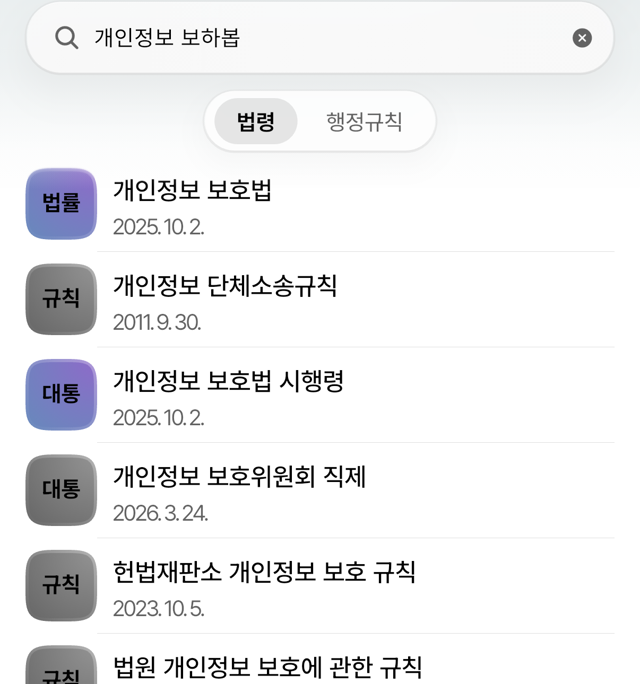
- Type the title. Even with a typo, the closest match is shown.
- Related laws share a color. Acts appear as rounded squares; decrees and rules appear as circles.
- The date in the list is the effective date, and official short names appear when they exist.
- Use the toggle at the top to search administrative rules. The clock icon at the top right shows earlier versions of laws you have opened.
Jumping to an article
- The list button at the top right opens a table of contents with the part, chapter, and section structure.
- Enter an article number in the search field to jump there. Type 1.2 for Article 1-2.
- Enter a word instead and it searches within the text you are reading.
Cross-references and copying
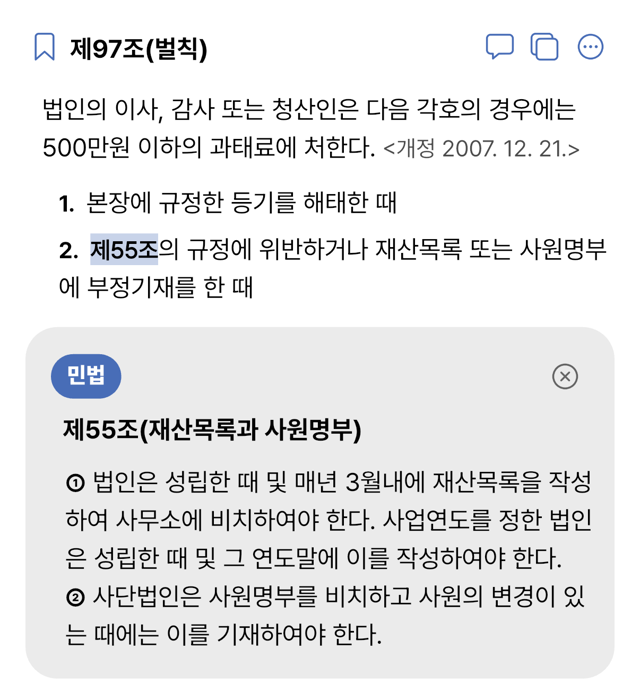
- Tap a reference inside an article and that article unfolds right below the line you were reading.
- You can copy the entire path you followed at once.
- The copy button copies the whole article; double-tap an item to copy only that item.
- Underlines inside an article mark definitions given in parentheses.
Saving and marking up
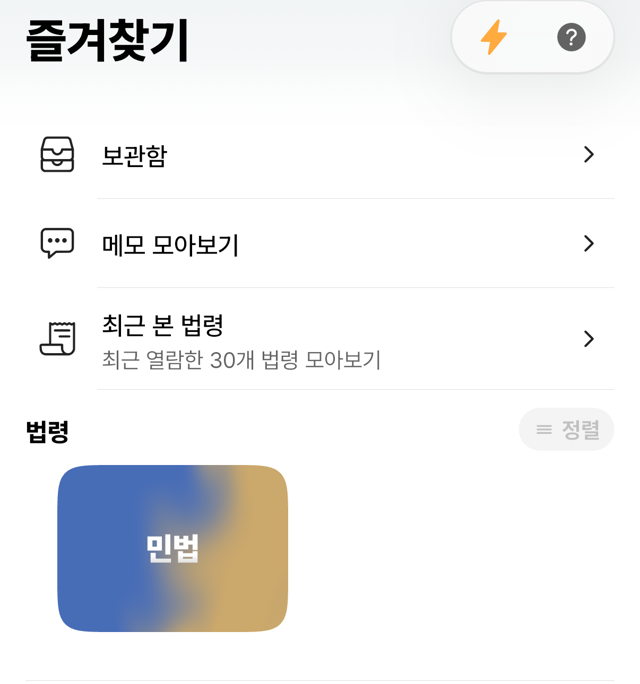
- The bookmark at the top left saves the whole law; the one next to an article title saves just that article.
- Press and hold an item in Favorites to reveal share and delete actions.
- The shelf lets you organize laws into folders, Collected Memos gathers your notes in one place, and Recently Viewed keeps the last 30 laws you opened.
- The shelf, highlights, and memos are available with Beoppering Membership. See membership
Adjusting the reading view
- Increase or decrease the text size while reading, and reset it whenever you like.
- Changing the reading typeface and locking light or dark mode are membership features.
- If that is not enough, iOS and iPadOS can enlarge text for a single app: Settings → Accessibility → General → Per-App Settings → Add App → Beoppering, then adjust Larger Text.
Troubleshooting
A law does not appear
If a law does not appear in search, send us its name and we will review it for inclusion.
Tables or figures in an administrative rule look broken
Administrative rules come in inconsistent source formats, so tables and figures occasionally break. Report it from the app: Favorites tab → (?) button → Contact.
Checking whether the text is current
Amendments are fetched automatically. Even when the list shows an older effective date, the reading view pulls the latest version. To force a refresh, tap the ⋯ button at the top right and choose “Reload”.
Purchases and subscriptions
Restoring a purchase
After changing devices or reinstalling, open the membership screen in the app and tap “Restore purchases”.
Cancellation and refunds
Payments are handled by the stores, so cancellation and refunds happen where you subscribed.
Contact us
Bug reports, requests for a missing law, and feature suggestions are all welcome. Please send them on the support board.
Beoppering is built and maintained by an individual developer who is also a lawyer, so replies may take some time.